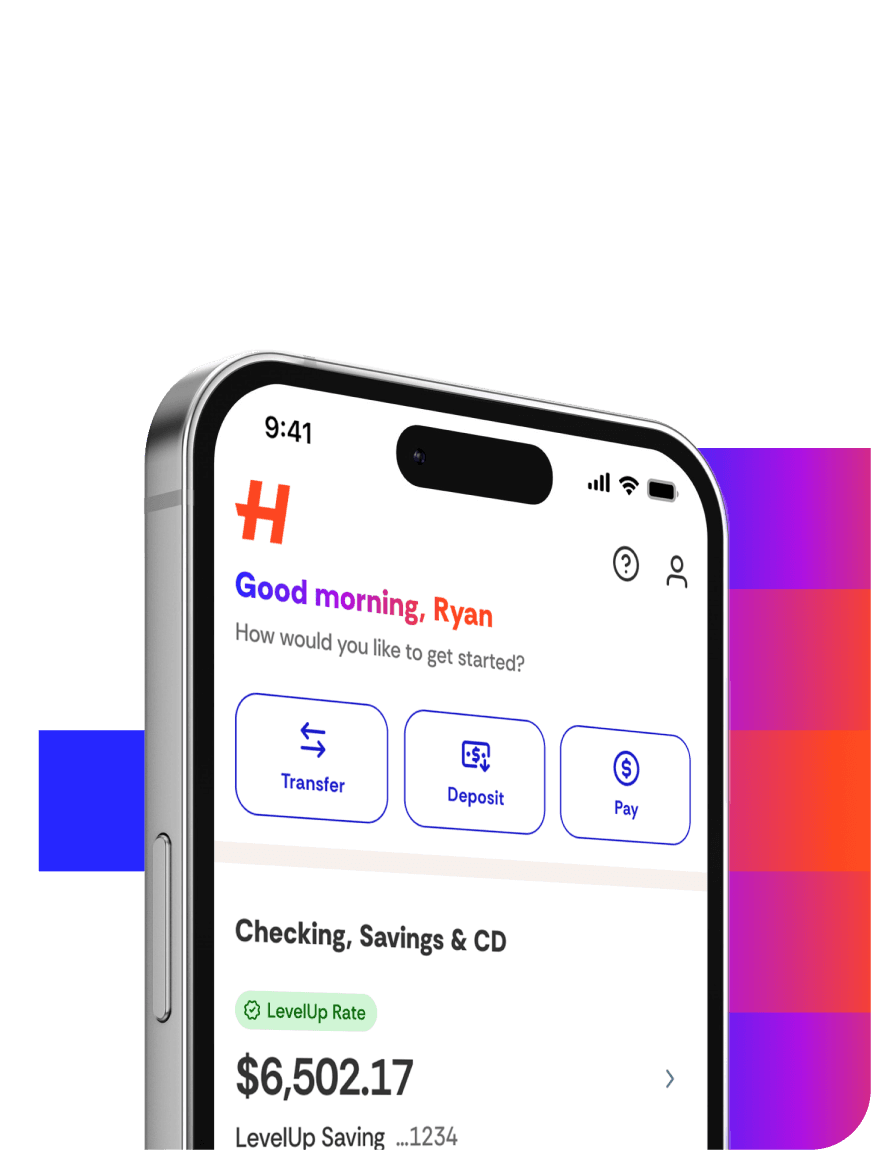
You can deposit checks with the Happen Bank App! Here’s how:
Confirm that the payee is listed as an account holder or joint account holder.
Sign the back of the check and add “For Mobile Deposit at Happen Bank only” below your signature.
Select Move Money > Deposit Check then follow the instructions to take a photo of the front and back of your check.
Select your deposit account and enter the amount on the check.
Tap Deposit.
Tap the History icon for the status of your mobile deposit.
Helpful Hints
We recommend a dark background on a light check that clearly displays the 4 corners of the check.