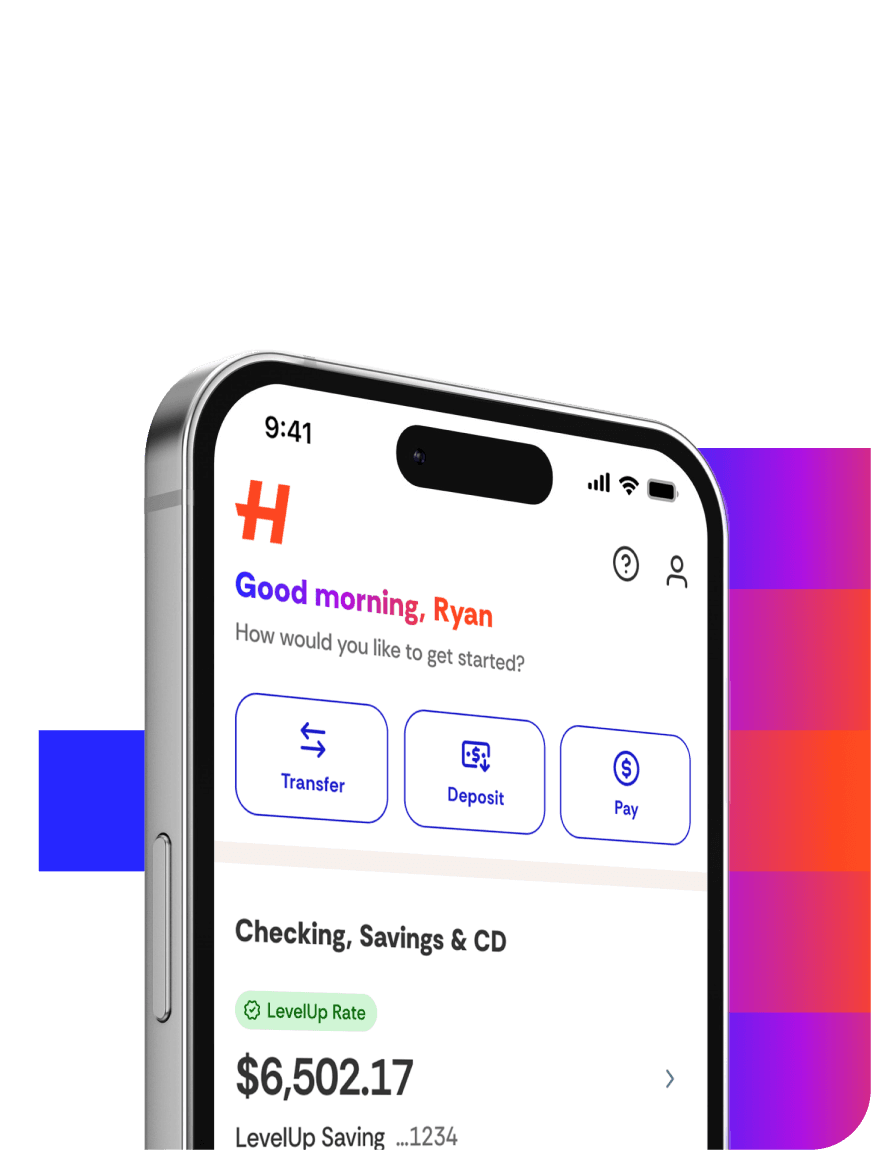
You can view and manage most of your account information by signing in on the web or using the Happen Bank mobile app, including your password, phone number, physical address, loan documents, payment methods, and two-factor authentication settings. For the best mobile experience, download the Happen Bank app from the Apple App Store or Google Play instead of using a mobile web browser. The app is designed for phone navigation and includes app-only features like mobile check deposit, Face ID, push notifications, quick account access, Move Money, DebtIQ, Offers, and in-app Help Center options.
View Your Loan Documents
From Accounts, select the loan you want to review. Click View Details & Documents.
In Loan Documents, select the document you want to view or download.
Once you click the document, it will download automatically to your phone or computer.
Change your password
To change your password:
Click your profile name in the upper-right corner, then click Settings.
Click Change My Password.
Enter your current password.
Enter and confirm your new password. To create a strong password, use special characters, like $ or %, as well as both upper- and lowercase letters.
Click Submit to reset your password.
You can now sign in with your new password.
Reset a forgotten password
If you've forgotten your password:
Click Need Help Logging In? on the sign-in page.
Enter the email address you used to open your account, then click Continue. We'll send you an email with a password reset link. If you no longer have access to that email address, contact us at 888-596-3157 for help.
In the email, click Reset Password. If you can't finish resetting your password the first time, you can click Need Help Logging In? on the sign-in page again, and we'll send you a new email with a unique link.
On the Reset Password page, enter the requested information. We ask for additional information to keep your account secure. Enter and confirm your new password. To create a strong password, use special characters, like $ or %, as well as both upper- and lowercase letters.
Click Submit. You'll receive an email confirming that your password has been updated.
You can now sign in with your new password.
If you're still having trouble signing in, your account may not be active. For example, your account may be deactivated after several months if you check your rate but don't accept any offers. If this is the case for you, you'll need to open a new account.
Secure your account with two-step authentication
Two-factor authentication helps prevent other people from accessing your account by adding an extra layer of security. Two-factor authentication is required for members with existing and new loans. Depending on your profile, you may be able to receive your verification code by text message, voice call, or an authenticator app. Make sure your email address and phone number are current so you can receive security codes when you sign in.
How to set up two-step authentication
Only members can add or update their authentication methods. To set up two-factor authentication:
Click your profile name in the upper-right corner, then click Settings.
Under Settings, click Manage Security Settings.
Click Add Authentication Method to add a phone, or authenticator app for two-factor authentication.
Using two-step authentication
When you sign in from a new device, you’ll need a verification code plus your login information.
Sign in on the web or use the Happen Bank mobile app.
Select how you want to receive the temporary security code, then click or tap Continue or Send Code.
Enter the verification code on the sign-in page, then click or tap Continue or Verify Identity.
If prompted in the mobile app, choose whether to enable Face ID and push notifications for faster, easier future access.
Security codes expire after 10 minutes. If you don’t receive a code or can’t use it in time, click Resend code or Resend it now to request a new one. If you use an authenticator app, the resend option may not be available. You can also choose Remember this device to reduce verification prompts on that device for up to 90 days or until you clear cookies.
Change your email address
To update your email address:
Sign in on the web or use the Happen Bank mobile app, then click your profile name in the upper-right corner.
Click Settings.
Use the edit icon next to your email address, if available, and follow the on-screen prompts.
If email updates aren’t available in your account experience or you no longer have access to the email address on file, contact us for help.
Please keep in mind that we can’t update your email address to an email that is already being used for a different existing account.
Change your address or phone number
To update your address or phone number:
Sign in on the web or use the Happen Bank mobile app, then click your profile name in the upper-right corner.
Click Settings.
Use the edit icon next to your phone number or address and follow the on-screen prompts.
When changing a phone number, you may receive a one-time verification code by text message or voice call. Enter the code to verify the change.
After updating your phone number, review your Login & Security or two-factor authentication settings and remove any old phone numbers you no longer use.
Change your name
If your legal name has changed or your name is misspelled on your account, follow the instructions below.
Change your legal name
To change the legal name on your Happen account, you'll need to send a copy of a legal document that confirms your name change to authforms@happen.com. Once we've verified that, we'll update your name for you. Here's what you can submit:
Legal name change document
Court-issued decree
Legal court order
Adoption certificate
Government-issued ID from before and after the name change
For your security, do not send a copy of your military ID.
Correct a misspelling
If there's a typo in your name, email a current, government-issued photo ID to authforms@happen.com. We'll be happy to review what you submit and update the spelling if needed. For your security, do not send a copy of your military ID.
Close your account
Once you pay off your obligation, your account is no longer active. The payoff will be reported to the credit bureaus within 30 days of the final payment. If you need an official payoff statement, let us know. We're happy to help!
For information on canceling, see canceling your application.
If you applied for a lending product and didn’t accept or receive an offer, your account may not be active. To manage an active account from a phone or tablet, use the Happen Bank mobile app for the most complete mobile experience.